
Prerequisites
- Active Claude subscription (Pro, Max, or API access)
- Access to an Outfox account with organization membership
Claude Desktop
Use the Outfox skills and plugin directly in Claude Desktop — works across Claude chat, Cowork, and Claude Code sessions.Connect the Outfox MCP server
Open Customize in the sidebar, then select Connectors. Add a new MCP
server with the URL:Claude will handle the OAuth flow and prompt you to sign in with Clerk.
Install the Outfox plugin
The Outfox plugin bundles skill documentation for the Outfox-native tool
groups: brands and organizations, brand analysis, creative inspiration,
creatives, and image generation. The rest of the surface — Meta Ads, the
named briefs, and Shopify analytics — is discovered automatically from the
MCP endpoint once you connect.
- Download the latest plugin: outfox-plugin.zip
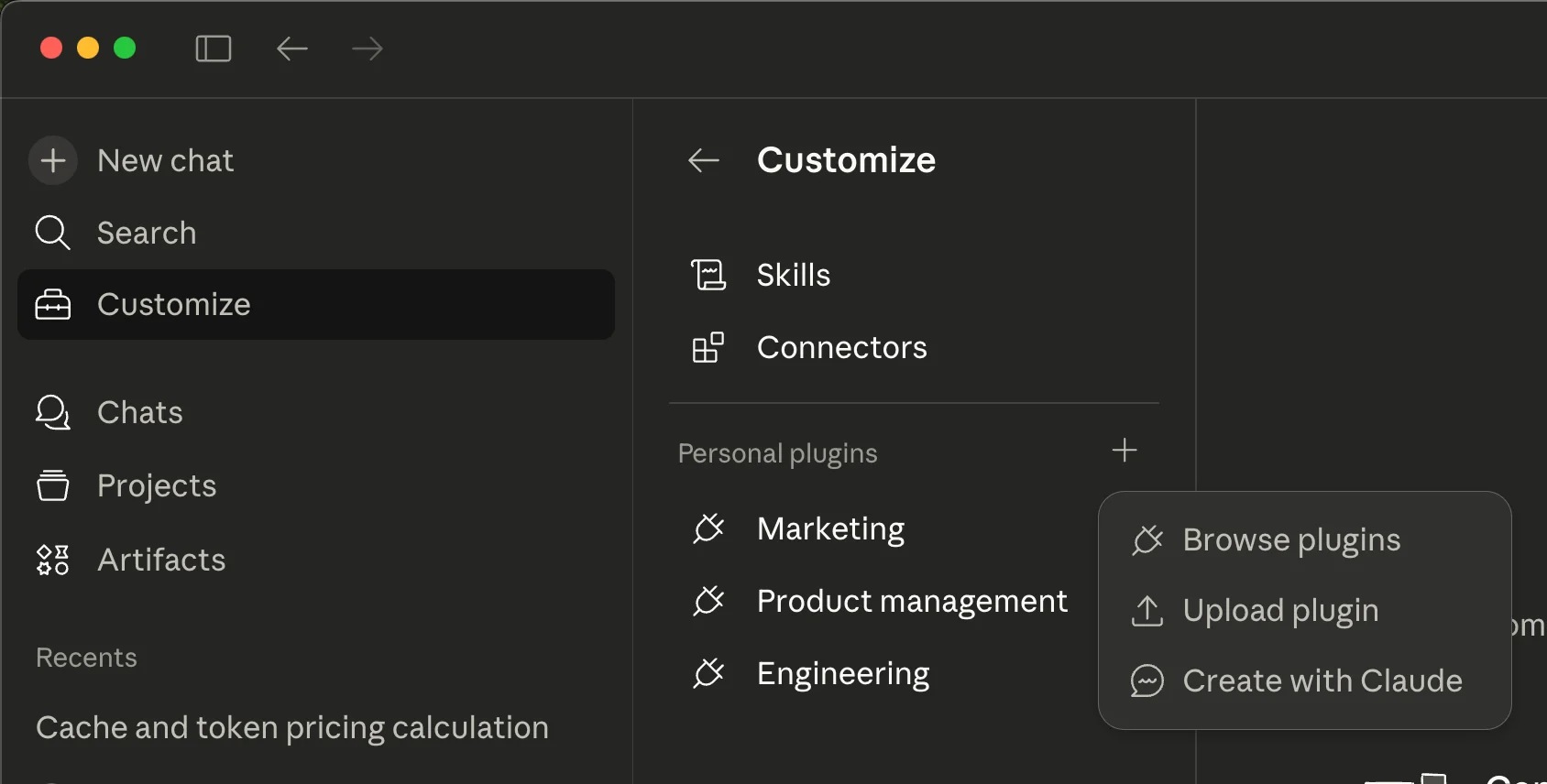
- In Claude Desktop, open Customize in the sidebar.
- Under Personal plugins, click the + button.
-
Select Upload plugin and choose the downloaded ZIP file.
Install individual skills (alternative)
If you prefer individual skills instead of the full plugin, upload them one at
a time. After unzipping the plugin, each skill is its own folder under
skills/ — outfox-resources, brand-analysis, creative-inspiration,
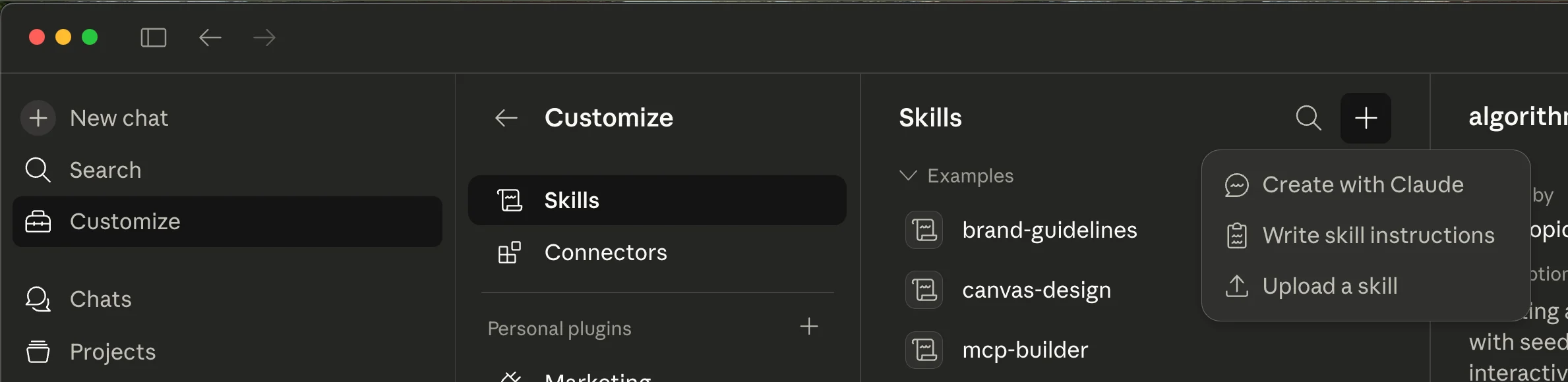
creative, and image-generation. ZIP the folder you want, then:- In Claude Desktop, open Customize > Skills.
- Click the + button and select Upload a skill.
-
Choose the ZIP file.
Claude Code
Setup
Connect the Outfox MCP server
Add the Outfox MCP server via the Claude Code CLI:Claude Code will handle the OAuth flow and prompt you to sign in with Clerk.
Install the Outfox plugin
The Outfox plugin gives Claude Code skill documentation for the Outfox-native
tool groups: brands and organizations, brand analysis, creative inspiration,
creatives, and image generation. The Meta Ads, brief, and Shopify tools come
from the live MCP endpoint when you connect.Option A — Load for one session (development/testing):Option B — Register permanently for the project:Add
outfox to enabledPlugins in .claude/settings.json (shared with
team) or .claude/settings.local.json (personal, gitignored):